Enable Attribution Engine
The attribution engine controls whether Cleot actively creates touchpoints and attributes revenue. It ships disabled by default after installation, giving you time to configure your attribution model, filters, and scope before any processing begins.
Accessing the Engine Toggle
- Navigate to the Attribution Configuration tab
- Click the Settings tab
- The Enable Attribution Engine section is at the top
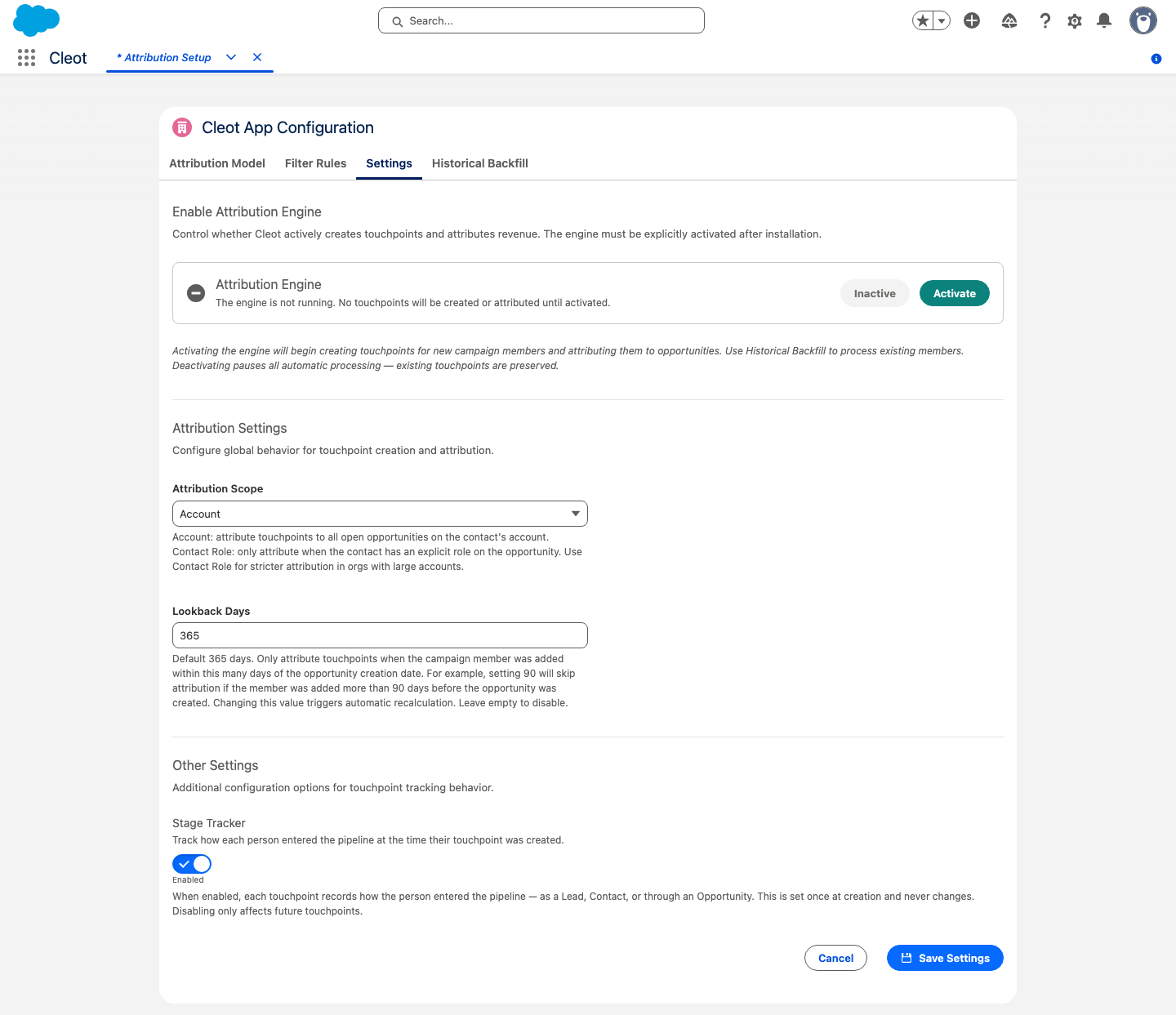
Engine States
| State | Badge | Behavior |
|---|---|---|
| Inactive | Gray badge | No touchpoints are created. No attribution occurs. All triggers are idle. |
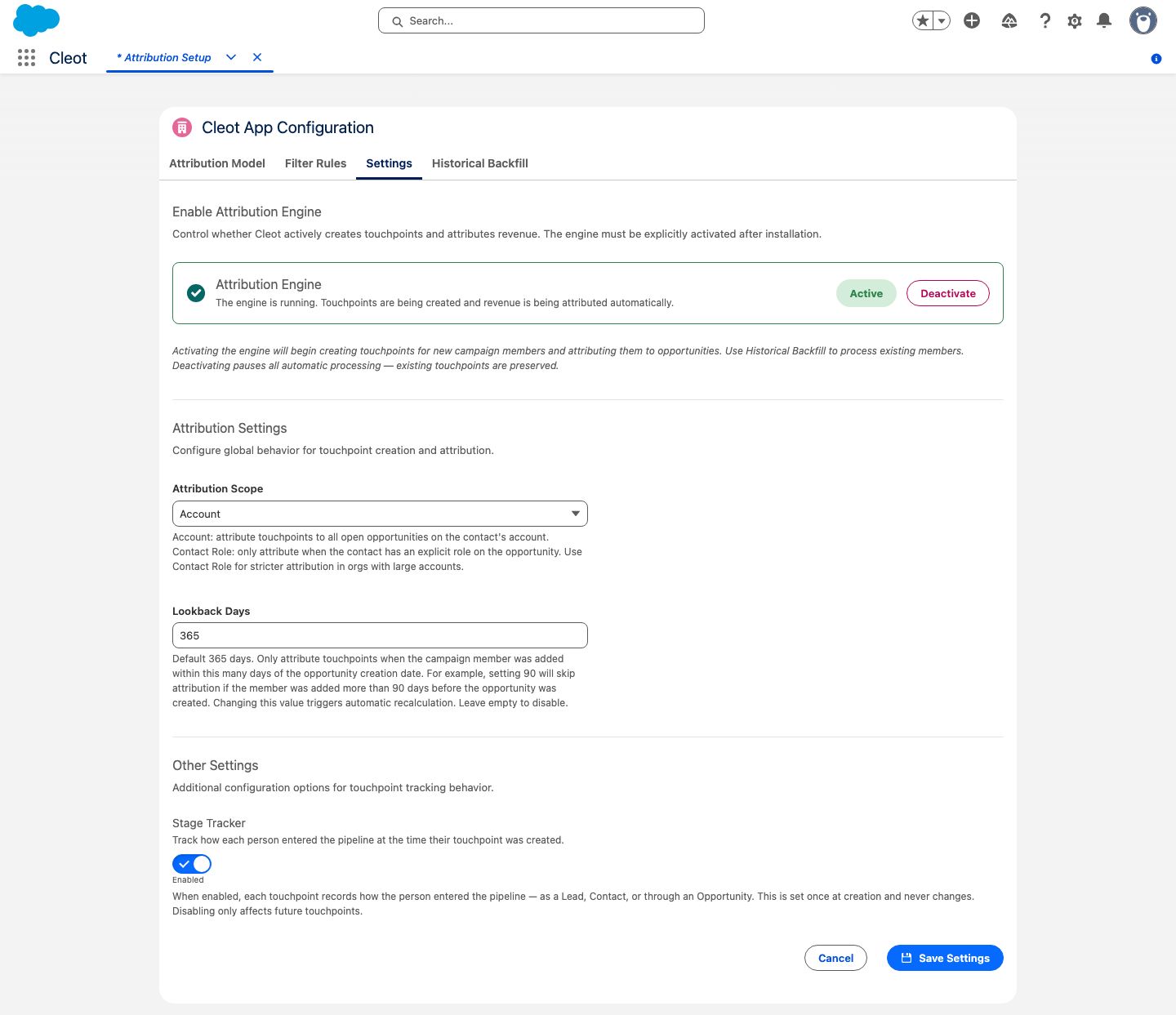
| Active | Green badge | Touchpoints are created for new Campaign Members and attributed to Opportunities automatically. |
Activating the Engine
- Click the Activate button
- A confirmation modal appears showing your current configuration:
- Attribution Model — the default model used for weight distribution
- Attribution Scope — Account or Contact Role
- Lookback Days — maximum days between Campaign Member creation and Opportunity creation (default 365, or Disabled)
- Active Filters — which filter types (Campaign, Campaign Member, Opportunity) have criteria defined
- Review the summary and check the acknowledgment checkbox
- Click Activate
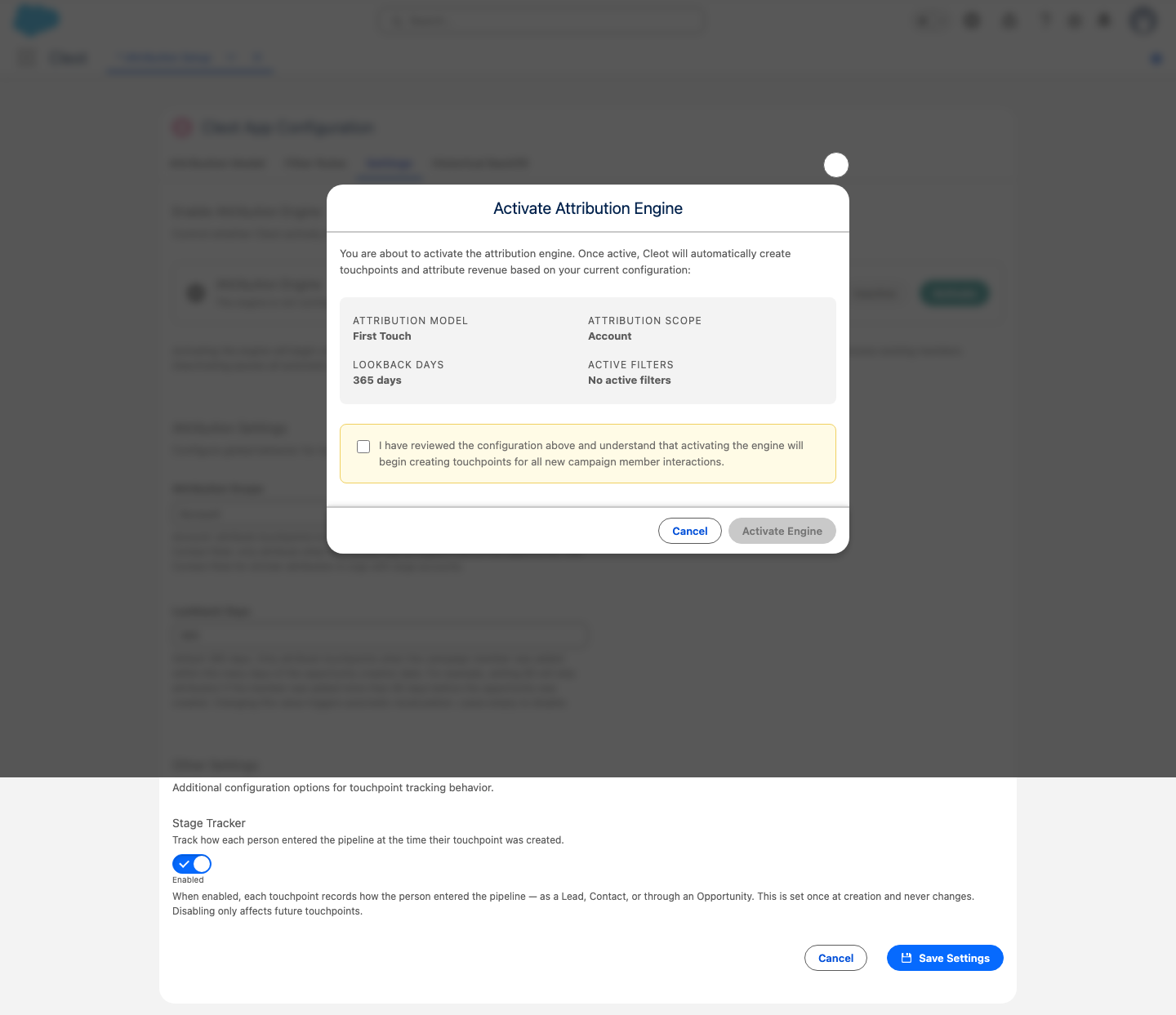
The engine begins processing immediately. Any new Campaign Members added to active Campaigns will generate touchpoints. Once active, the engine shows a green Active badge with a Deactivate option:
Review your attribution model, scope, lookback, and filter settings before activating. The confirmation modal shows a summary, but you should verify each setting in its respective tab first.
Deactivating the Engine
- Click the Deactivate button
- Confirm the deactivation in the modal
Deactivating pauses all automatic touchpoint creation and attribution. Existing touchpoints and their data are preserved — nothing is deleted. You can reactivate at any time.
Touchpoints for Campaign Members added while the engine was inactive will not be created retroactively. Use Historical Backfill to process them after reactivating.
When to Deactivate
- During initial setup — configure your model, filters, and scope before activating
- Before bulk data loads — prevent trigger processing during large Campaign Member imports
- Troubleshooting — temporarily pause the engine while investigating unexpected behavior