Lookback Days
Lookback Days controls how far back a campaign interaction can be from an opportunity to still count as relevant. The default is 365 days. It compares the Campaign Member creation date against the Opportunity creation date — if the gap exceeds the configured window, the touchpoint is not attributed to that opportunity.
How It Works
When a touchpoint is being attributed to an opportunity, Cleot checks:
Opportunity Created Date − Campaign Member Created Date ≤ Lookback Days
If the campaign member was added within the lookback window relative to the opportunity, the touchpoint is created. If the member was added too far in the past, the touchpoint is skipped.
Example
With Lookback Days set to 90:
| Campaign Member Created | Opportunity Created | Delta | Result |
|---|---|---|---|
| Jan 1, 2026 | Feb 15, 2026 | 45 days | Attributed (45 ≤ 90) |
| Jan 1, 2026 | Jun 1, 2026 | 151 days | Skipped (151 > 90) |
| Mar 1, 2026 | Mar 14, 2026 | 13 days | Attributed (13 ≤ 90) |
When Lookback Applies
Lookback is evaluated in all touchpoint creation paths:
- New Campaign Member — when a member is added and the contact has open opportunities
- New Opportunity — when an opportunity is created and existing touchpoints are attributed
- Campaign Activation — when a campaign becomes active and backfills touchpoints
- Historical Backfill — when running the batch backfill job
Lookback does not apply to unattributed touchpoints (Leads or Contacts without opportunities), since there is no opportunity date to compare against.
Changing the Setting
When you change Lookback Days in the Settings tab and save, a background recalculation runs automatically:
- Tightening (e.g., 30 → 7): touchpoints where the member-to-opportunity gap exceeds the new window are soft-excluded —
Is Activeis set to false and amounts are zeroed - Widening (e.g., 7 → 90): previously excluded touchpoints that now fall within the window are reactivated and amounts are recalculated
- Disabling (any value → empty): all lookback-excluded touchpoints are reactivated
Soft-excluded touchpoints are never deleted. They can always be reactivated by widening or disabling the lookback window.
Configuring Lookback Days
- Go to the Attribution Configuration tab
- Click the Settings tab
- Enter a number in the Lookback Days field (default is 365, or leave empty to disable)
- Click Save
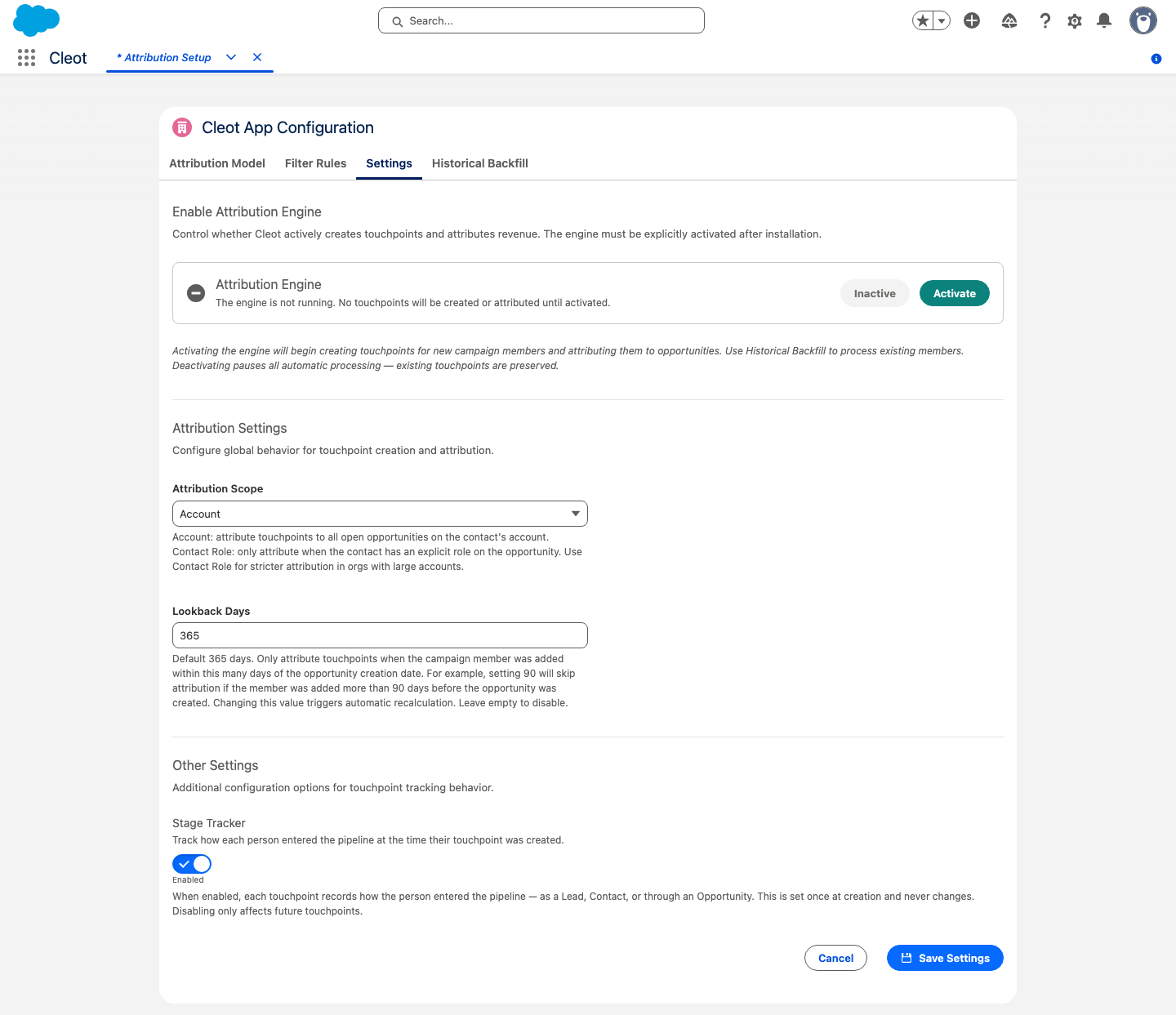
Setting the value to 0 or leaving it empty disables the lookback filter entirely — all campaign members qualify regardless of when they were added.