Filter Rules
The Filter Rules tab provides a unified inclusion filter engine for touchpoint creation and attribution. Three filter sections cover Campaign, Campaign Member, and Opportunity objects. Only records matching active filter criteria will have touchpoints created and kept active. When no active rules exist, all records are included by default. Non-matching records are deactivated and removed from revenue calculations, but never deleted. Removing or disabling a filter reactivates previously deactivated records.
Accessing Filter Rules
- Navigate to the Attribution Configuration tab
- Click the Filter Rules tab
Filter Sections
Each section works independently and has the same interface:
| Section | What It Filters | Example Use Case |
|---|---|---|
| Campaign Filters | Campaigns by field criteria | Include only campaigns where Type = "Webinar" |
| Campaign Member Filters | Campaign Members by field criteria | Include only members where Status = "Responded" |
| Opportunity Filters | Opportunities by field criteria | Include only opportunities where Amount >= 1000 |
Enabling a Filter Section
Each section has an Enabled/Disabled toggle in the header. Toggling a section on or off takes effect immediately.
Building Criteria
Adding a Group
- Click Add Group to create a new criteria group
- Each group is a gray box containing one or more criteria rows
Adding Criteria
- Inside a group, click + Add Criteria
- Select a Field from the dropdown
- Select an Operator (options depend on the field type)
- Enter a Value
- Click Save Criteria when done
Operators by Field Type
| Field Type | Available Operators |
|---|---|
| Text | Equals, Does Not Equal, Contains, Starts With |
| Picklist | Equals, Does Not Equal, Contains, Starts With |
| Currency | Equals, Greater Than, Less Than, Between |
| Number | Equals, Greater Than, Less Than, Between |
| Date | Equals, Before, After, Between |
The Between operator shows two value fields (From and To).
Logic Within a Group
Use the AND/OR toggle next to the CRITERIA label to control how criteria within a group are combined:
- AND — All criteria must match for the group to apply
- OR — Any criterion matching is enough
Logic Between Groups
When you have multiple groups, an AND/OR toggle appears between them:
- AND — All groups must match
- OR — Any group matching is enough
Removing Criteria
- Click the X icon next to a criterion row to remove it
- Click Delete Criteria (red button) to remove an entire group
Example: Include Only Webinar Campaigns
- Enable Campaign Filters
- Add a group
- Add criteria: Type → Equals → Webinar
- Save
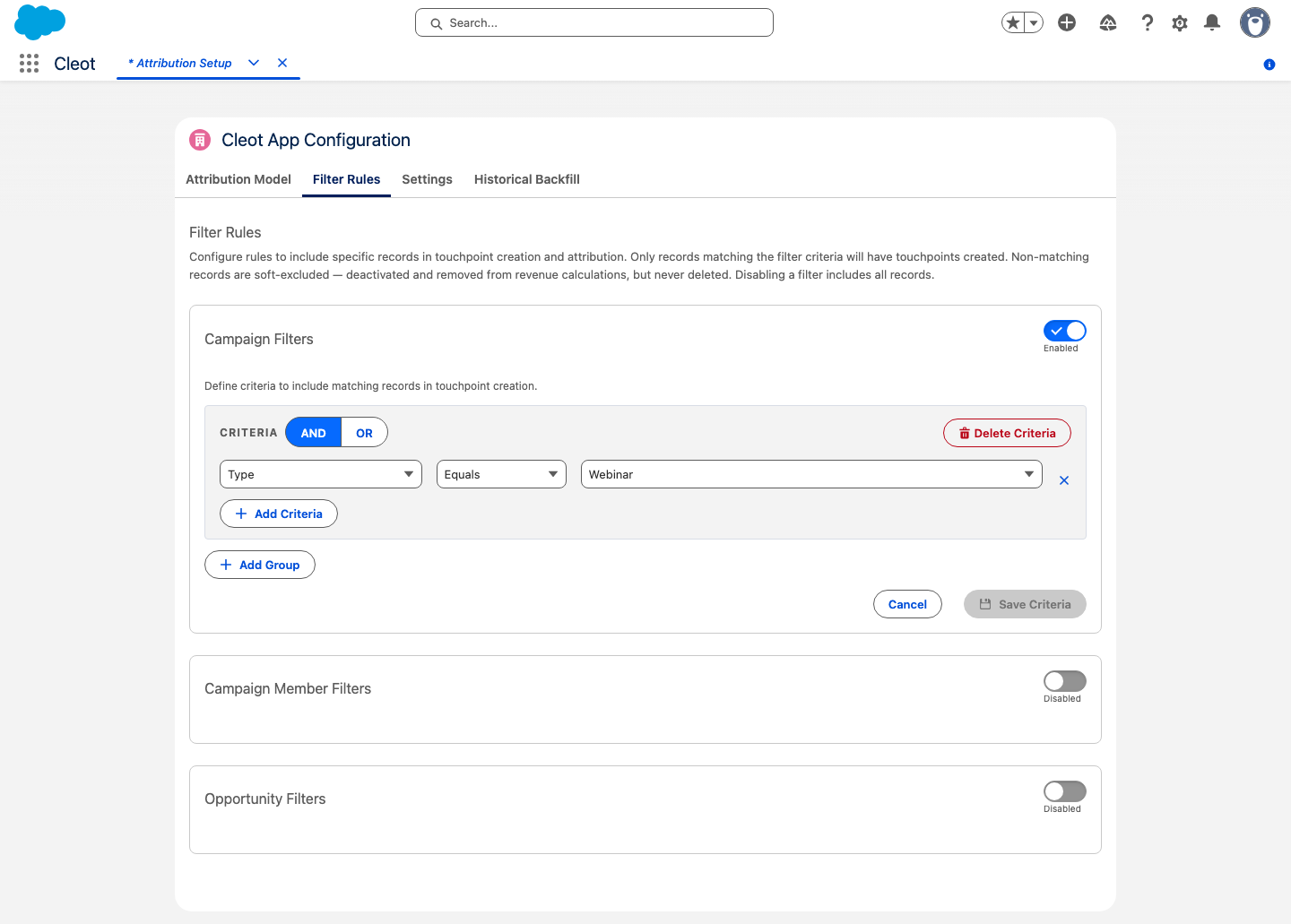
Only touchpoints linked to "Webinar" campaigns remain active. New members added to non-Webinar campaigns will not generate touchpoints.
Example: Include Only Large Opportunities
- Enable Opportunity Filters
- Add a group
- Add criteria: Amount → Greater Than → 1000
- Save
Impact on Touchpoints
When a record does not match inclusion filter criteria:
- Related touchpoints have
Is_Active__cset tofalse - Attribution weights and amounts are zeroed out
- Touchpoint records are preserved — nothing is deleted
When a filter is disabled or criteria are removed:
- All touchpoints are reactivated (no filtering applied)
- Attribution weights and amounts are recalculated
Filter changes trigger an automatic recalculation. No manual intervention is needed.