Historical Backfill
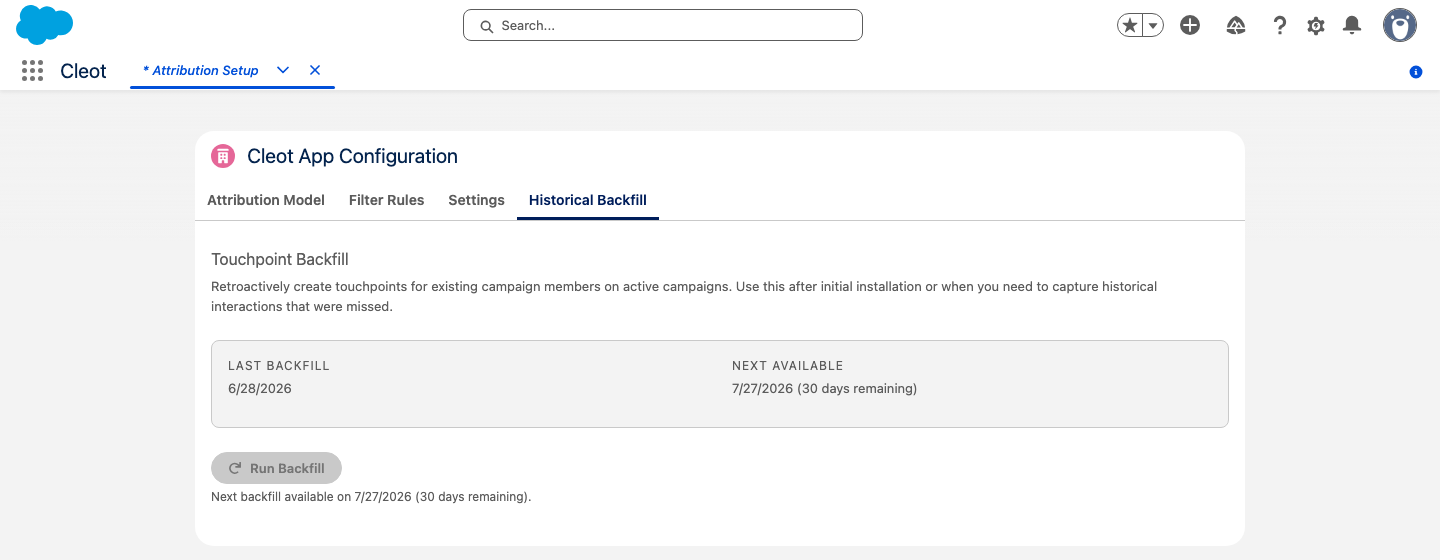
Retroactively create touchpoints for existing campaign members on active campaigns. Use this after initial installation or when you need to capture historical interactions that were missed.
When to Use Backfill
Run a backfill when:
- You first install the app and have existing Campaign Members
- You've been adding Campaign Members without the app active
- You want to capture historical interactions that were missed
Running a Backfill
- Go to the Attribution Configuration tab
- Click the Historical Backfill tab
- Click Run Backfill
- A confirmation modal appears — check the acknowledgment checkbox to confirm you understand the operation and cooldown period
- Click Run Backfill in the modal to start
- The batch job starts processing in the background
- Progress is displayed on the page — you can navigate away and return to check status
What the Backfill Does
The backfill processes all Campaign Members on active Campaigns and creates touchpoints using the same logic as real-time creation:
| Aspect | Behavior |
|---|---|
| Touch Date | Set to the Campaign Member's Created Date (not the backfill date) for historical accuracy |
| Deduplication | Skips Campaign Members that already have a touchpoint — safe to run multiple times |
| Opportunity attribution | Contacts with open Opportunities get attributed touchpoints |
| Filters applied | All active filter rules (campaign, member, opportunity) and lookback period apply |
| Attribution scope | Respects the current Account or Contact Role scope setting |
| Lifecycle position | Set based on the Lead/Contact/Opportunity state at the time of backfill |
Cooldown Period
A 30-day cooldown is enforced between backfill runs to prevent accidental duplicate processing. The last backfill date is shown on the Attribution Configuration page.
Processing Details
- The backfill runs as a Salesforce batch job with a default batch size of 200 records
- Records are ordered by Account to minimize database lock contention
- Failed records are skipped (partial success) — successfully created touchpoints are preserved
- Attribution weights are recalculated after each batch chunk
warning
Backfill uses your current filter and scope settings. Configure those before running to ensure correct results.
After Backfill
Once complete, verify the results:
- Check a few Campaign Members and confirm they have touchpoints with the correct Touch Date
- Verify attributed touchpoints have the correct Opportunity linked
- Run the backfill status check on the Attribution Configuration page to confirm completion